


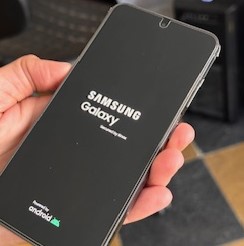
 Recently we’ve had several Samsung phones that will turn on briefly, but not long enough to transfer data to a new phone, or even complete a Samsung Smart Switch Backup to a connected usb drive. If your phone will turn on, but not stay on, there are a few things that you can try before sending the phone in for mail-in data recovery.
This problem is separate from a similar problem in iPhones, the three minute reboot loop. iPhones have thermal sensors that can stop reporting to the CPU and triggering a panic-full reboot at the three minute mark. We’ve detailed the solution to this problem in a separate article here.
So far, the android phones don’t have the sensor based reboot, but they do suffer from poor connection of the CPU or encrypted data chip to the logic board. This can happen out of the blue, or after a hard drop or getting run over. The reboot is likely triggered by excess heat that comes from damage to the logic board, a trace crack in the board, or damage to the chips. If your phone is able to boot, these are the steps that you can take to try and get the phone to stay on long enough to get important files that are not backed up.
What to do if your phone won’t stay on long enough to complete a backup.
-
**Turn down the screen brightness. ** This dramatically reduces the energy you are requiring from the battery. If the phone is rebooting because it is hitting a current max that the battery simply can’t supply, this strategy can help.
-
Make several smaller backups and merge**.** One thing the Samsung phones are good at is merging information from multiple smart switch backups. You can adjust your smart switch settings to only backup messages for example, and this will reduce the time it takes for the phone to complete a backup. Later, you can merge multiple small backups on your new phone
-
Heat or cool the phone**.** If the problem is poor connection of a chip, you can sometimes get a temporary “fix” from changing the temperature. Components in the logic board will expand and contract and the resistance in the circuitry will change by putting the phone on a gentle heat mat or briefly in the freezer. Sometimes this is enough to get the phone to stay on just a little longer.
-
Backup to a different location. Did you know that backing up data by plugging in your phone to your PC will take hours longer than backing up that same data to a usb drive using an OTG cable. It’s even faster for phones that have a built in SD card. If your phone won’t connect to the OTG cable, then try backing up your most important data like contacts via bluetooth to another phone. If it can’t stay on long enough for SmartSwitch, try backing up from My Files copy/paste to internal storage. You have lots of options.
-
Swap in a fully charged battery. This requires opening your phone, but it’s worth a try if you have access to a fully charged battery and are pretty handy. There are lots of DIY guides on iFixit.com that will show you how to get into your phone. Problems with the charging system are common on all mobile devices, so you can separate a true problem with the main board from a charging problem by swapping in a fresh battery. You don’t have to fully install it, just open the phone and overlay the new battery to see if you can get it to boot just long enough to extract your data.
-
If these tips don’t work, then it’s time to send your phone in formail-in data recovery. As long as the chip that contains your encrypted data and the chip that holds the decryption key are themselves functional, we can transfer those chips from your logic board to a working receiver board through microsoldering. This is the last ditch solution, but it will solve any problem on the native logic board that is preventing your phone from staying on long enough to complete your backup.